
In summary:
- A smartwatch is more than a gadget; it’s a “digital prosthesis” that requires thoughtful, UK-specific customisation to be truly effective.
- Features like VoiceOver and Double Tap are not just functions but tools for navigating daily life, from the London Tube to the corporate office.
- Choosing the right hardware (size) and software (complications, apps) is crucial for creating a frictionless workflow and ensuring digital independence.
- For UK professionals, the Apple Watch’s deep integration with Microsoft Office and UK-specific apps makes it a superior tool for workplace accessibility.
For a visually impaired person in the United Kingdom, technology is not a luxury; it’s a lifeline. A smartwatch, in particular, holds immense promise. It’s a discreet device, always accessible on the wrist, capable of bridging gaps in a world designed for sight. Yet, many guides simply list accessibility features like VoiceOver or Zoom. They talk about what the technology *can* do, but not how to make it work for you in the concrete reality of a busy British life—navigating a crowded train station, managing a hectic workday, or simply controlling your home environment.
The standard advice often overlooks the nuances of partial sight, dexterity challenges, and the specific digital ecosystem of the UK. Setting up an Apple Watch for accessibility isn’t just about turning on features; it’s about curating a highly personal tool. It involves a process of deliberate ‘information triage’ to decide what data is essential and what is just noise. The goal is to transform a consumer electronic into a functional, digital prosthesis—an extension of your senses that reduces daily friction and enhances capability.
But if the key isn’t just enabling features, what is it? The answer lies in practical, contextual integration. It’s about configuring the device to interact seamlessly with UK-specific services like the NHS App, Citymapper, and Hive, and to function as a powerful productivity tool within professional environments. This guide moves beyond the feature list. We will explore how to set up, navigate, and master a smartwatch, not just as an accessory, but as an essential partner for independence and efficiency for visually impaired users across the UK.
This article provides a detailed roadmap for this customisation process. Explore the sections below to learn how to tailor every aspect of your device to your specific needs, turning it into a powerful tool for daily life in the UK.
Summary: A Practical Guide to Smartwatch Customisation for Visual Impairment
- Why the “Modular” Watch Face Is Crucial for Readability
- How to Navigate Menus Without Looking at the Screen Using VoiceOver
- 41mm vs 45mm: Which Size Offers the Best Tactile and Visual Experience?
- The Mistake of Overloading the Home Screen with Unreadable Information
- Dexterity Issues: How to Use “Double Tap” for Touch-Free Control
- How to Reply to Messages on the Go Without Using Your Phone
- Why Controlling Your Hive Heating from Your Watch Saves You Money
- Apple Watch vs. Garmin: Which Best Integrates with the Microsoft Office Ecosystem?
Why the “Modular” Watch Face Is Crucial for Readability
For a user with low vision, the watch face is not a fashion statement; it’s a dashboard. The primary goal is information triage—presenting the most critical data in the most legible format. Many default watch faces prioritise aesthetic appeal over functional clarity, filling the screen with analogue hands or detailed backgrounds that create visual noise. The “Modular” series of faces (including Modular and Modular Duo) stands apart by treating the screen as a grid for high-contrast, data-rich ‘complications’. This approach allows you to build a personalised interface focused on utility.
By customising the Modular face, you can place essential, at-a-glance information from UK-specific apps directly on your home screen. Imagine seeing the next Tube departure from Citymapper, a severe weather alert from the Met Office, or your next GP appointment from the NHS App, all presented as simple, bold icons or large-font text. This setup minimises the need to navigate through app lists, reducing cognitive load and saving precious time. As the RNIB demonstrates for various Apple devices, leveraging built-in features is the first step toward true digital independence.
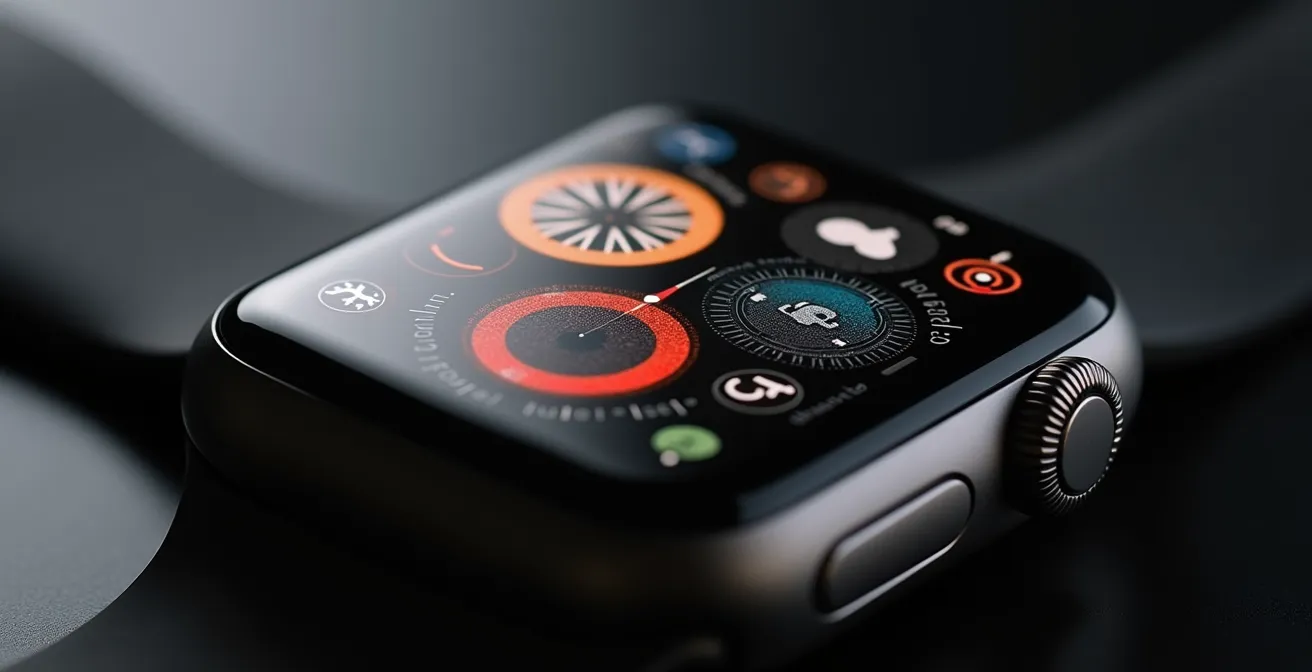
The power of this customisation lies in its ability to create a frictionless workflow for daily tasks. Instead of fumbling for a phone and navigating multiple screens, a single glance or a simple VoiceOver gesture on the watch face provides the necessary information. This immediate access is not just convenient; it’s a fundamental enhancement of personal autonomy, particularly in fast-paced or unfamiliar environments. Properly configured, the Modular face becomes less of a screen and more of a tactile, responsive information hub tailored to your life in the UK.
How to Navigate Menus Without Looking at the Screen Using VoiceOver
VoiceOver is the cornerstone of non-visual interaction with Apple devices. It’s a powerful screen reader that vocalises every item on the screen, transforming a visual interface into an audible and tactile one. For a visually impaired user, mastering VoiceOver on the Apple Watch means unlocking complete, eyes-free control over the device. It moves the watch from being a simple notification device to a fully interactive digital prosthesis. This is especially critical in a professional context, where discreetly managing information is key. The stark reality is that assistive technology is a vital enabler for employment; RNIB research found that only one in four blind or partially sighted people is in employment in the UK, highlighting the need for effective tools.
Navigating with VoiceOver is based on a set of simple, intuitive gestures. Instead of looking for an icon, you slide your finger across the screen to explore what’s there. Each element is announced aloud. A double-tap activates the selected item, whether it’s opening an app, replying to a message, or starting a workout. For privacy in public spaces, a three-finger triple-tap engages the ‘Screen Curtain’, turning the display off while leaving the watch fully functional through VoiceOver. This allows you to check a bank balance on the Tube or read a sensitive work email without risk of shoulder-surfing.
This table outlines the fundamental gestures and their practical application with popular UK apps. Mastering these actions is the key to a fluid, non-visual experience.
| Gesture | Action | UK App Example |
|---|---|---|
| Single Tap | Move finger around display to hear item names | Explore Trainline platform info |
| Double Tap | Activate selected item | Open Citymapper route |
| Two-Finger Double Tap | Adjust VoiceOver volume by sliding up or down | Adjust volume in noisy station |
| Screen Curtain (3-finger triple tap) | Turn off display for privacy | Check Monzo balance on Tube |
Ultimately, using VoiceOver effectively is about building muscle memory. With practice, navigating menus becomes second nature, allowing for rapid and discreet interaction that rivals, and in some cases surpasses, the speed of a sighted user. It’s a skill that builds confidence and ensures the watch is a tool for empowerment, not frustration.
41mm vs 45mm: Which Size Offers the Best Tactile and Visual Experience?
Choosing between the 41mm and 45mm Apple Watch models goes far beyond aesthetics for a user with visual impairments; it is a critical decision about usability. The larger 45mm screen offers two distinct advantages. First, for those with some remaining vision, it provides a larger canvas, allowing for bigger font sizes and less crowded complications, which significantly improves legibility. Second, and arguably more important for all users, is the enhanced tactile experience. The larger surface area creates more generous ‘hit targets’ for taps and gestures, reducing the likelihood of errors, especially for those who may also have dexterity challenges.
A larger screen makes interacting with keypads for PIN entry, selecting from lists, or activating small controls in the Control Centre more reliable. This physical tolerance is not a minor convenience; it’s a core accessibility feature. It reduces the frustration of mistyping a passcode for Apple Pay or struggling to activate a specific setting. Furthermore, the physical size can impact the prominence of haptic feedback, with some users reporting that the vibrations feel more distinct on the larger model. This tactile feedback is a crucial channel of information, confirming actions and delivering notifications without a sound or glance.
The right to accessible technology is enshrined in UK law. As a key principle, the Equality Act demands practical changes to ensure equal access.
The Equality Act requires transport providers and public spaces to make reasonable adjustments for people with disabilities
– Visibility Scotland, The Equality Act 2010: A guide for people with vision impairment
While the law applies to providers, the principle of ‘reasonable adjustment’ should also guide personal technology choices. Selecting the 45mm model can be seen as making a ‘reasonable adjustment’ for oneself to ensure the technology is as usable as possible. The best way to decide is to trial both sizes in-store with a specific set of tasks in mind.
Your audit checklist: Choosing the right size
- Test Control Centre activation: Can you reliably swipe up from the bottom edge on both sizes?
- Evaluate Apple Pay PIN entry: Is the number pad on the 45mm screen significantly easier to tap accurately?
- Check notification haptics: Can you clearly distinguish between different haptic alerts on both models?
- Assess VoiceOver navigation: Does the larger screen make it easier for VoiceOver to recognise your flicking gestures to move between items?
- Compare strap security: Does the larger watch head feel secure and stay correctly positioned on your wrist?
The Mistake of Overloading the Home Screen with Unreadable Information
A common mistake when setting up any new device is to fill it with as many apps and widgets as possible. For a visually impaired user, this is not just inefficient—it’s counterproductive. The small screen of a smartwatch demands ruthless curation. The goal is to achieve contextual independence, where the watch provides the exact information needed for a specific situation, without overwhelming the user. Overloading the app honeycomb or watch face with dozens of tiny, indistinguishable icons turns a powerful tool into a source of frustration.
Instead of replicating your phone’s home screen, think of the watch as a remote control for your most frequent actions and a display for your most critical data. The principle of ‘information triage’ is paramount. Ask yourself: what are the 5-10 tasks I perform most often that would benefit from being on my wrist? This could be checking the weather, starting a specific workout, replying to a key contact, or controlling your smart home. Mainstream technology is increasingly built with this inclusivity in mind, allowing users to tailor their experience. Assistive technologies are no longer niche; they are powerful features that enable everyone to browse websites, use social media, and perform work-related tasks effectively.

A minimalist setup is a more powerful one. A clean app grid with only essential apps, arranged in a predictable pattern, is far faster to navigate with VoiceOver. A Modular watch face with just three or four well-chosen complications is more legible than one packed with eight tiny data points. This minimalist philosophy extends to notifications. A constant barrage of alerts from every app creates ‘notification fatigue’ and turns the helpful haptic feedback into an annoyance. By disabling all non-essential notifications, you ensure that when your wrist does buzz, it’s for something that genuinely requires your attention. A curated device is a more functional and respectful digital prosthesis.
Dexterity Issues: How to Use “Double Tap” for Touch-Free Control
Visual impairment is often accompanied by other physical challenges, including issues with dexterity or tremors that can make precise screen taps difficult. In these scenarios, even a large screen can be frustrating to use. Apple has introduced two powerful solutions for this: AssistiveTouch and the more recent Double Tap gesture. While both enable control without traditional screen interaction, they serve different purposes and are key to creating a truly frictionless workflow for users with motor challenges.
AssistiveTouch is the more comprehensive solution. It uses the watch’s built-in motion sensors to let you control a cursor on the screen by clenching your fist, pinching your fingers, or shaking your wrist. It allows for full navigation of the entire watchOS interface, but it requires a learning curve and can be slower for simple actions. The Double Tap gesture, conversely, is designed for speed and simplicity. By simply tapping your index finger and thumb together twice, you can perform the primary action in many apps—answer a call, stop a timer, play or pause music, or snooze an alarm. It’s a one-handed, touch-free shortcut for the most common daily tasks.
For a user in the UK, this has immediate practical benefits. You can answer a call while holding shopping bags, or dismiss a notification on a crowded Tube without needing to bring your other hand up to the screen. It is a perfect example of technology providing contextual independence. The choice between Double Tap and AssistiveTouch depends on the user’s specific needs, as outlined below.
| Feature | Double Tap | AssistiveTouch | UK Access to Work Support |
|---|---|---|---|
| Complexity | Simple one-handed | Full gesture suite | Both covered |
| Best for | Quick actions | Complex navigation | Workplace tasks |
| Setup difficulty | Minimal | Requires training | Support available |
| UK scenarios | Answering calls with shopping bags | Full app control | Professional use |
For many, a hybrid approach works best: enabling Double Tap for quick, everyday interactions while keeping AssistiveTouch available for more complex navigation when needed. Both features can be supported through the UK’s Access to Work scheme, which can help fund technology and training that enables disabled people to thrive in employment.
How to Reply to Messages on the Go Without Using Your Phone
For a busy professional, staying connected is non-negotiable. Replying to messages quickly and discreetly is a daily requirement, but pulling out a phone isn’t always practical or appropriate, especially when navigating a busy street or sitting in a meeting. The Apple Watch offers several methods for a frictionless workflow in communication, allowing you to respond without ever touching your phone. The most efficient of these is the use of pre-set quick replies.
While the default replies (“OK,” “Thanks,” “On my way”) are useful, their true power lies in customisation. You can create a personalised list of responses tailored to your specific professional and personal life in the UK. This transforms the feature from a generic tool into a highly efficient communication shortcut. By taking ten minutes to configure these, you can save countless moments of friction throughout your week. Consider creating replies that reflect common British business etiquette and scenarios.
Here are some examples of custom UK-centric quick replies to set up:
- “In a meeting, will call back shortly.”
- “Running 5 mins late, stuck on the Tube.”
- “Acknowledged, thank you.”
- “Will review and revert by EOP.” (End of Play)
- “Apologies, technical difficulties. Will join momentarily.”
Beyond quick replies, the watch also enables dictation. By tapping the microphone icon, you can speak your reply, and Siri will transcribe it into text. Modern dictation is surprisingly accurate, even in moderately noisy environments. For short, simple responses, this is often faster than typing on a phone. For an even more hands-free approach, you can use the “Announce Messages with Siri” feature, where incoming messages are read aloud through your connected headphones, and you can simply say “Reply” to dictate your response. This is a game-changer for walking between appointments, allowing you to manage correspondence without breaking your stride or looking at a screen.
Why Controlling Your Hive Heating from Your Watch Saves You Money
The concept of a ‘smart home’ can often seem like a gimmick, but for a visually impaired user, it represents a profound shift in independence. Being able to control your environment through voice or a simple tactile interface removes physical barriers. One of the most practical applications of this in the UK is managing central heating through popular systems like Hive. Controlling your heating from your Apple Watch is not just about convenience; it’s about accessibility and tangible financial savings.
Physical thermostats can be a significant accessibility challenge. They often feature small, low-contrast digital displays, fiddly dials, or non-tactile buttons, making them difficult or impossible to operate without sight. While a smartphone app is an improvement, it still requires finding the phone, unlocking it, and navigating to the correct app. The Hive app on the Apple Watch, accessible via VoiceOver, streamlines this process into a few simple taps on the wrist. You can boost the heating, check the current temperature, or turn the system off entirely, all from your armchair. As organisations like Guide Dogs UK highlight, smart technology like lighting and heating controlled by voice or simple interfaces is a key enabler of in-home independence.
This accessible control leads directly to better energy management and cost savings. The ability to easily turn down the heating when you leave the house or lower the temperature by a single degree overnight means you are more likely to do it. Given the high cost of energy in the UK, these small adjustments accumulate into significant savings. According to UK government analysis, a simple adjustment can have a large impact; a homeowner can save up to £120 annually just by turning their thermostat down by 1°C. For a visually impaired person, the watch is the tool that makes this level of granular, cost-saving control not just possible, but effortless.
Key takeaways
- Customisation Is Independence: A generic setup is a barrier. True accessibility comes from personalising every aspect of the watch, from the face to the notifications, to serve your specific needs.
- Non-Visual Interaction Is Power: Mastering tools like VoiceOver and Double Tap transforms the watch from a visual device into a powerful tactile and audible interface, enabling full control without sight.
- The Right Tool Boosts Professional Life: For a UK professional, a smartwatch is a ‘reasonable adjustment’ tool that enhances productivity and ensures seamless integration into the modern workplace.
Apple Watch vs. Garmin: Which Best Integrates with the Microsoft Office Ecosystem?
For many professionals in the UK, the working day revolves around the Microsoft Office ecosystem: Outlook for email and calendars, and Teams for instant messaging and meetings. When choosing a smartwatch to act as a reasonable adjustment tool for the workplace, its ability to integrate seamlessly with these platforms is a deciding factor. While brands like Garmin make excellent fitness trackers, the Apple Watch holds a commanding lead for a visually impaired professional due to its deep software integration and superior accessibility features.
The core difference lies in the level of interaction. A Garmin watch will typically display basic notifications from Outlook or Teams, but the ability to act on them is limited. The Apple Watch, however, offers a rich, interactive experience. You can read full emails (with VoiceOver), archive or delete them, and dictate replies directly from your wrist. You receive interactive Teams notifications and can send quick replies. This turns the watch into a powerful triage tool, allowing you to manage your digital workload discreetly during a meeting or while on the move, without needing to access your phone or laptop.
This superior integration is underpinned by Apple’s robust, system-wide accessibility framework, which is consistently rated as the gold standard by accessibility experts like AppleVis. The comparison is stark.
| Feature | Apple Watch | Garmin | UK Workplace Impact |
|---|---|---|---|
| Screen Reader | VoiceOver – premier resource for blind users | Limited TTS | Essential for Equality Act compliance |
| Office 365 Integration | Full Outlook/Teams support | Basic notifications only | Critical for UK corporate environments |
| UK App Support | NHS, Citymapper, UK banking | Limited UK-specific apps | Daily accessibility needs |
| Voice Control | Siri with UK English | Basic commands | Professional communication |
Disabled people and their families represent the Purple Pound, worth approximately £249 billion annually in the UK. UK businesses lose £17.1 billion each year due to disabled customers abandoning inaccessible websites
– Eye-Able, Equality Act 2010 & Digital Accessibility in the UK
While the “Purple Pound” statistic refers to customers, the principle applies internally. Equipping employees with the most accessible and integrated tools is not just a legal requirement but a smart economic decision, unlocking productivity and talent. For a professional user with visual impairment in the UK, the Apple Watch is currently the unparalleled choice for a truly functional digital prosthesis in the workplace.
Now that you have a comprehensive understanding of how to tailor a smartwatch to your needs, the next logical step is to begin applying these principles. Start by auditing your current devices and identifying the small points of friction that a well-configured watch could eliminate from your daily routine.